TABLE OF CONTENTS
Document Clause Page Summary
The Document Clauses Page allows users to see all clauses assigned to themselves or their teams in an easy to view list. This page works in conjunction with the Review Clauses page to allow users to do their assessments clause-by-clause.
This feature aims to make managing your compliance easier and more user-friendly for those who prefer doing clause level compliance through a dashboard view.
Users can navigate to this page by clicking on Facilities in the top navigation bar and selecting Document Clauses:
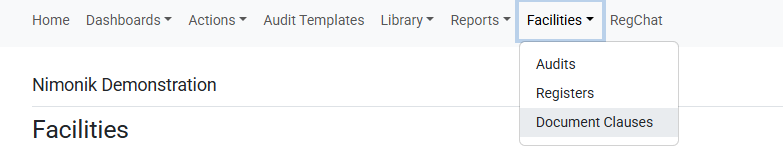
Document Clauses Page: General Overview
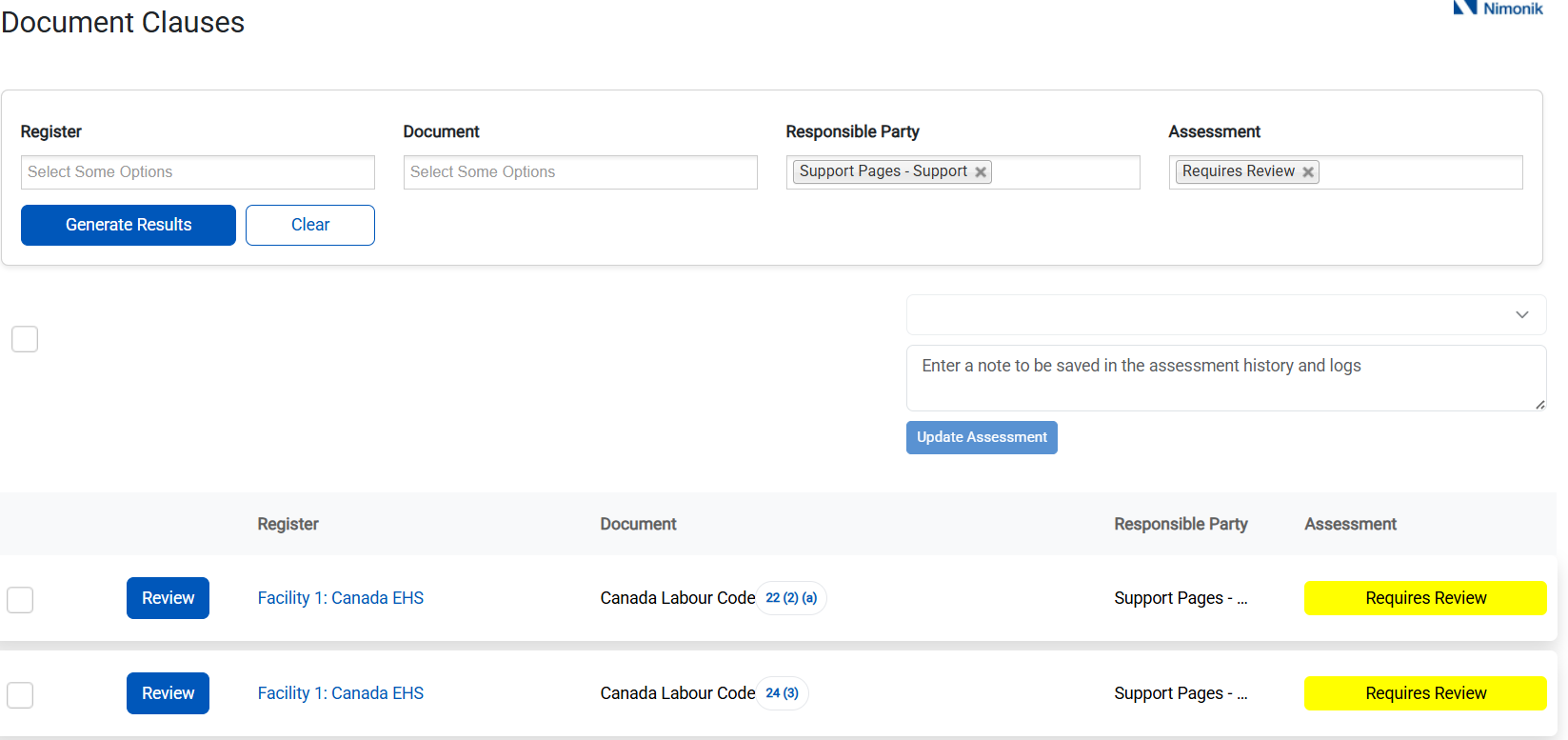
Document Clauses Page: Filter Fields

On the Document Clauses page, there are 3 filter fields enabled:
- Register
- This dropdown lists ALL Registers that the user has been shared
- You can select multiple Registers to view clauses from
- This filter is default set to blank to show all Registers
- Admins can see all Registers in the account
- Document
- This dropdown lists all documents the user has access to.
- They can select a specific document from the list to view which clauses within that document have been assigned to themselves or their teams.
- This filter is default set to "Empty"
- Admins can see all documents within the account
- Responsible Party
- This dropdown lists the user and all teams they are a part of
- You can select multiple Users and Teams to view clauses from
- This filter is default set to the "User" logged in to show all clauses assigned to them
- Admins can see all Users and Teams in the account
- Assessment
- This dropdown lists all Assessment Options set for the account
- You can select multiple Assessment Options to view clauses from
- This filter is default set to the "Yellow" Assessment Option (named "Requires Review" for new accounts)
- Admins and Users can select multiple Assessment Options. Users will still filter results based on what they have been shared
To re-generate the list of clauses, enter the correct filter fields and click on "Generate Results"

Document Clauses Page: Clause List
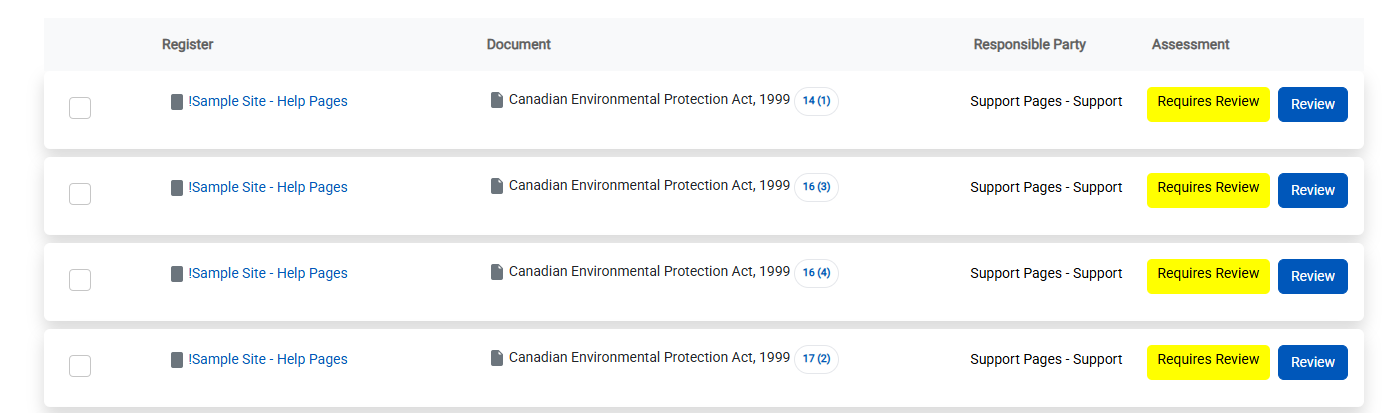
The clauses listed are categorized by the Register, Document Title, Document Clause Number, Responsible Party, and Assessment Status. This list displays 15 entries at a time.
You can click on the Register name to be redirected to the Register view:

You can click on the Clause number beside the Document Title to be redirected to the Clause Level View of that Document within a Register:

Document Clauses Page: Review Clause Button
Clicking on the "Review" button will navigate you to the Review Clause Page to execute your assessments:

Admin Feature: Bulk Assessment Changer
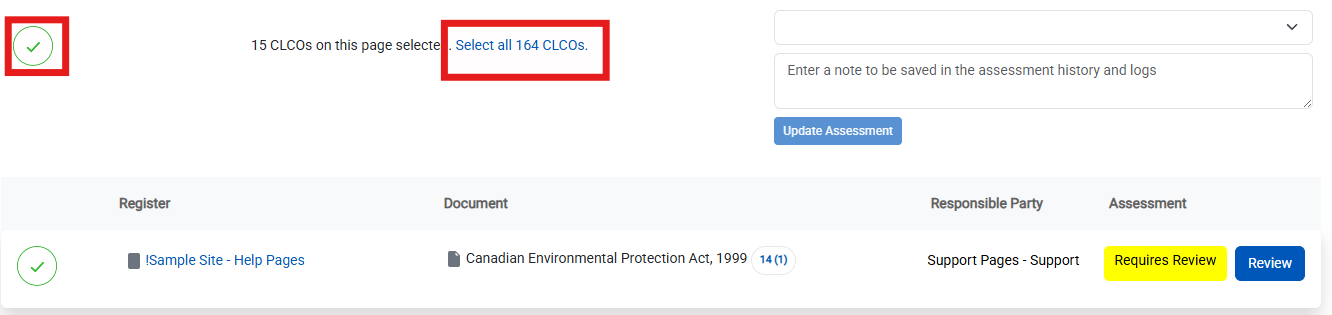
If you are an Admin accessing this page, you will see the ability to bulk change the listed clauses Assessment Status:
Other User permission roles will NOT see the bulk changer or checkboxes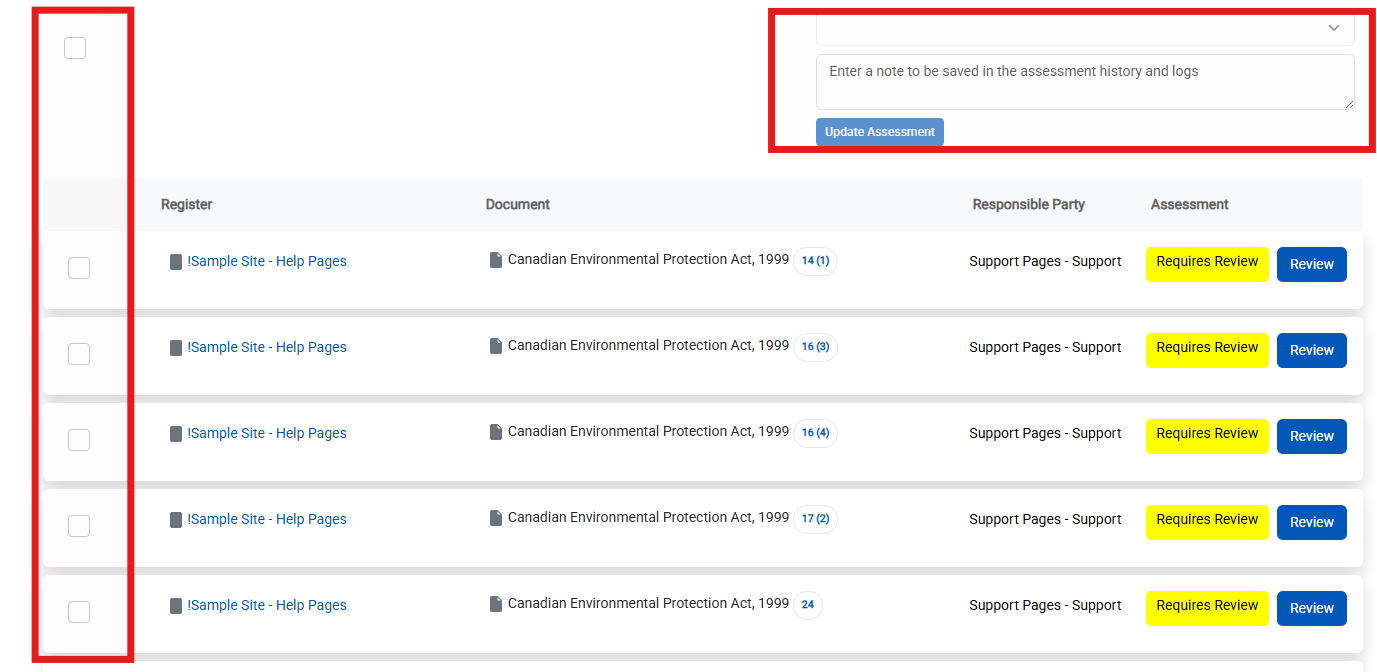
Users can select individual clauses on the page or click the top-most checkbox to select all on the page. There is also an option to select all Clauses that have been filtered for:
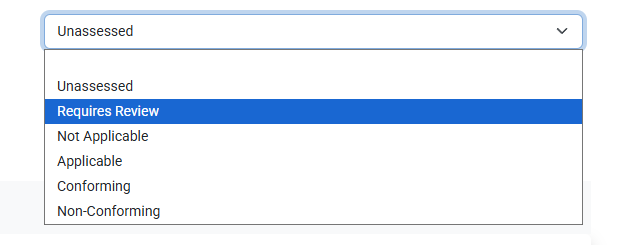
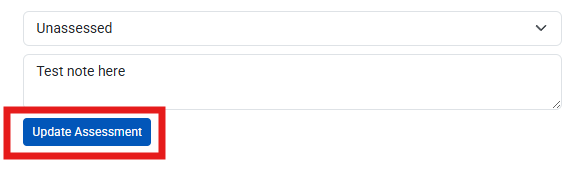
Once the user has selected the clauses they would like to bulk assessment change, they needs to select the new status, leave an assessment note, and then click "Update Assessment". A green banner will display at the top indicating that the action was successful:

Was this article helpful?
That’s Great!
Thank you for your feedback
Sorry! We couldn't be helpful
Thank you for your feedback
Feedback sent
We appreciate your effort and will try to fix the article