Nimonik allows you to assign a risk value to the documents in your Register using the risk matrix. To do so, simply follow the steps below.
Create your Risk Matrix on the Settings Page. (Account Administrators Only)
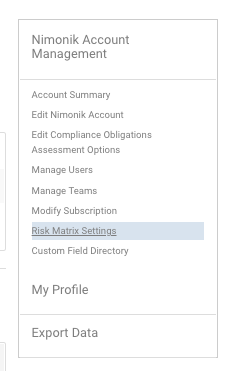
Go to the settings page and click on Risk Matrix Settings
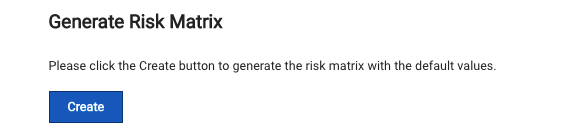
On the resulting page, click the create button to create your risk matrix
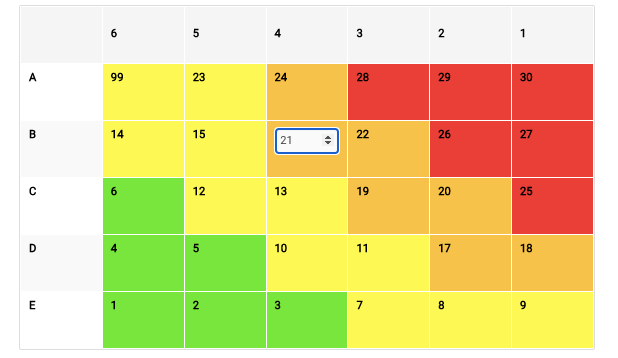
Once your risk matrix has been created, you can click on any cell to change its value.
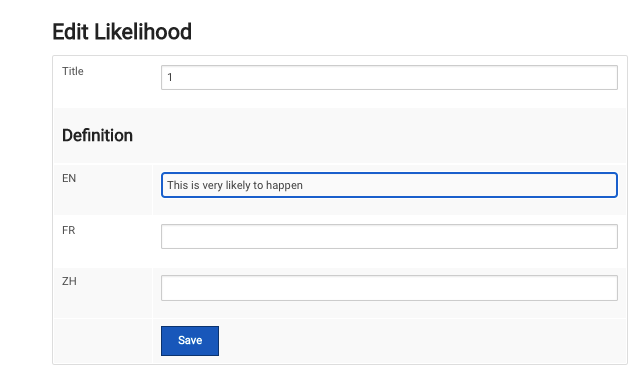
You can also add definition to the title cells (Likelihood & Consequence), which appear along the top and left edges.
Likelihood by default is displayed as numbers 6 to 1.
Consequence by default is displayed as letters A to E.
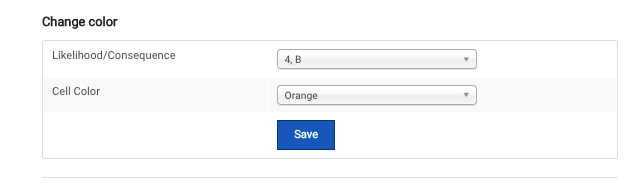
or change the colour of cells using the drop-downs at the top of the page.
Risk Matrix Descriptions
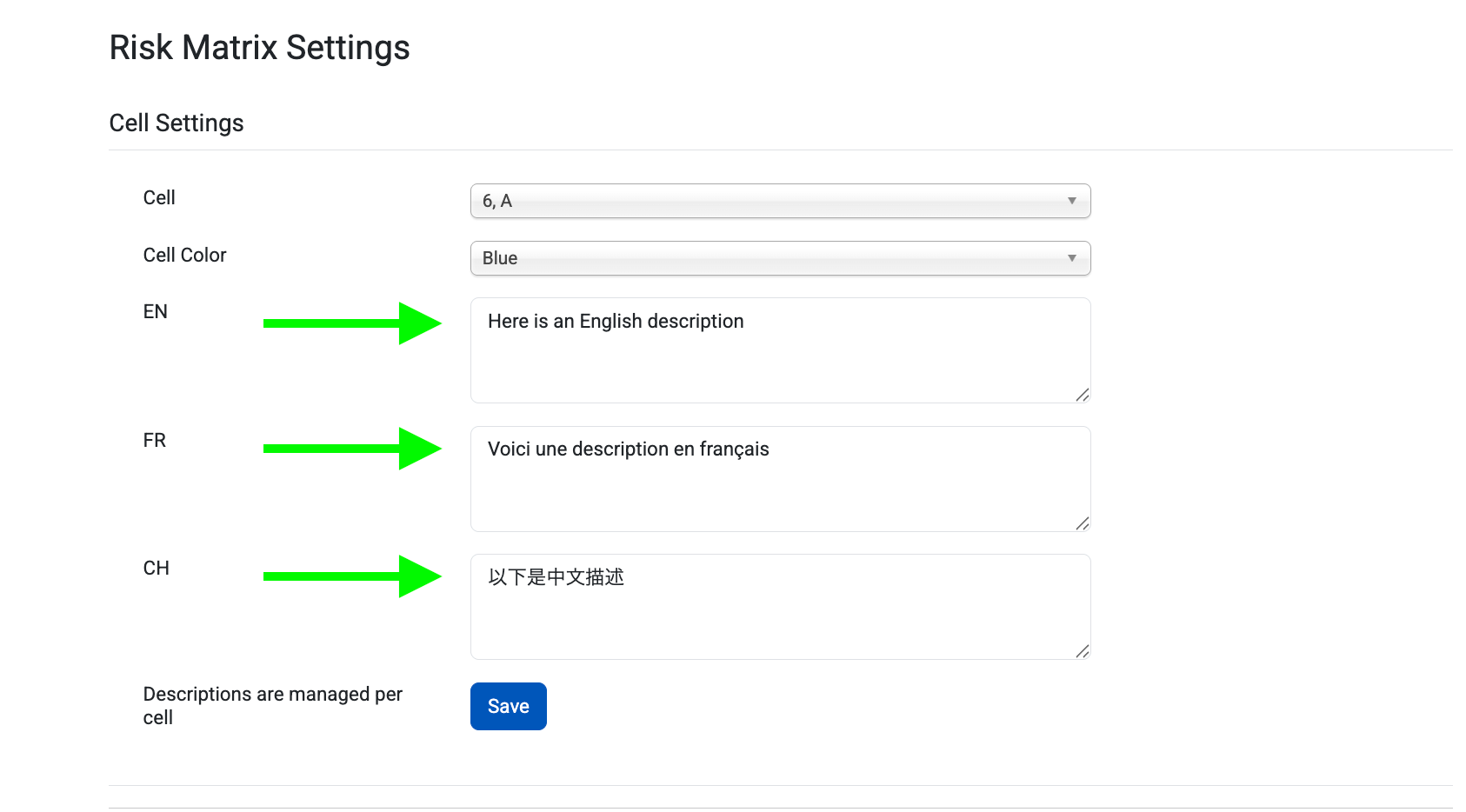
Account admins can now add a description to each cell in their risk matrix.
To do so, admins go to the ‘Risk Matrix Settings’ page, and use the dropdown to select the cell they wish to edit.

They can then add a description for the cell in each of the supported languages using the provided fields.
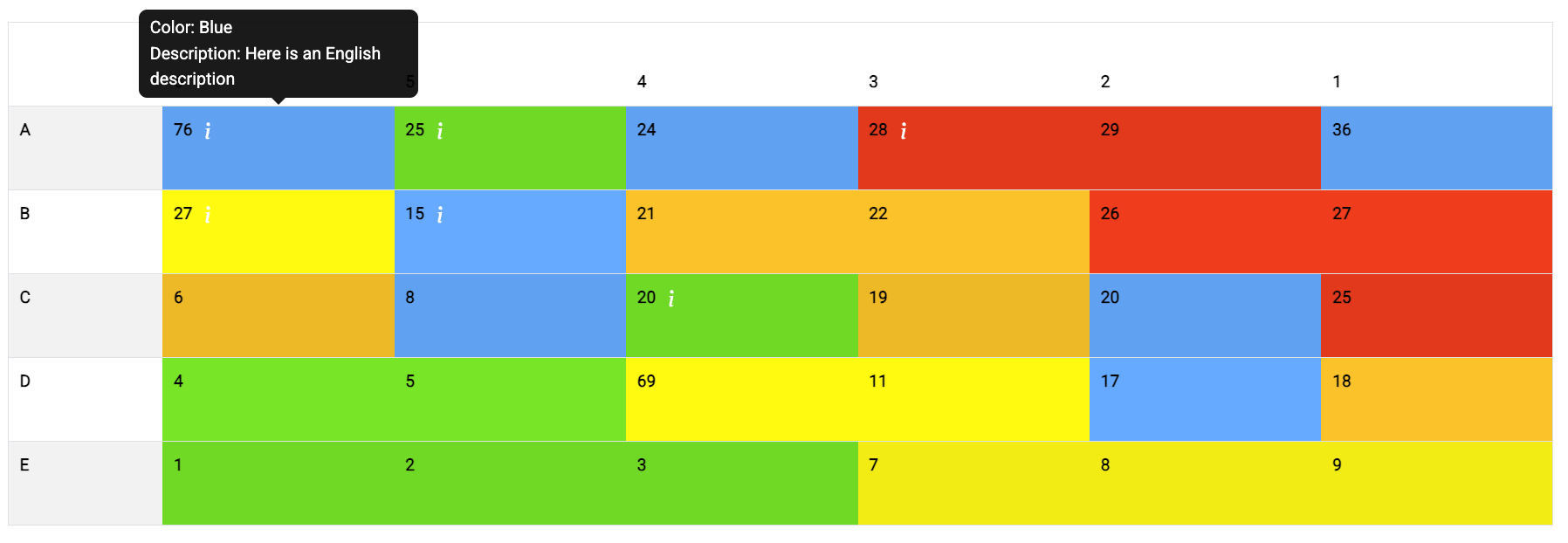
The descriptions that they enter will appear when they hover over the cell on the settings page, or when populating a risk type custom field in their register.
To learn how to assign risk to your Register, please click here.
Was this article helpful?
That’s Great!
Thank you for your feedback
Sorry! We couldn't be helpful
Thank you for your feedback
Feedback sent
We appreciate your effort and will try to fix the article