TABLE OF CONTENTS
The Company Message feature allows Account Administrators to broadcast important updates, instructions, or links to company documentation directly to all users within the Nimonik account.
Overview for Administrators
Account Admins can easily set up, update, or remove a global message from the account settings.
Key Restriction: Only one company message can exist in the account at any given time. Creating a new message or updating the current one will overwrite the previous content. Admins can edit or delete the message at any time on the ‘Company Message’ settings page.
Step 1: Navigate to Company Message Settings
To find the configuration page, log into your admin account:
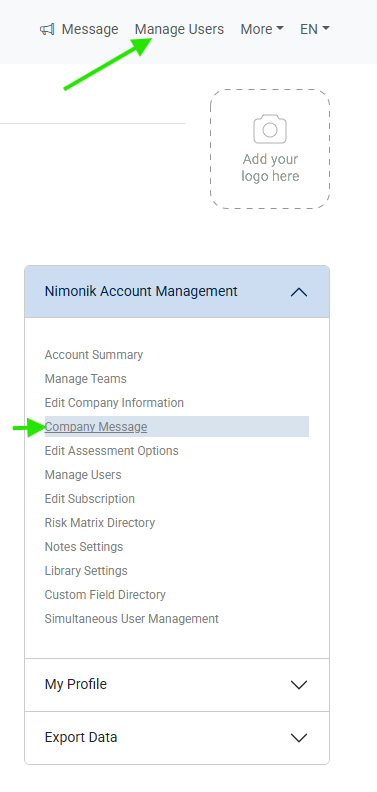
Go to Manager Users in the top menu.
On the right side panel, click on Company Message.
You can see the location of this option in the setup menu below:
Step 2: Compose Your Message
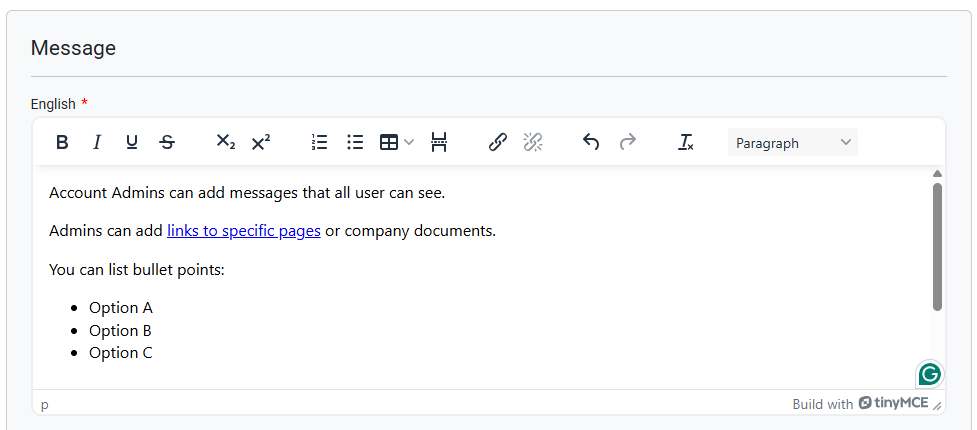
Once on the settings page, use the rich text editor to draft your announcement.
Language Requirements: Providing an English version of the message is mandatory (marked with a red asterisk).
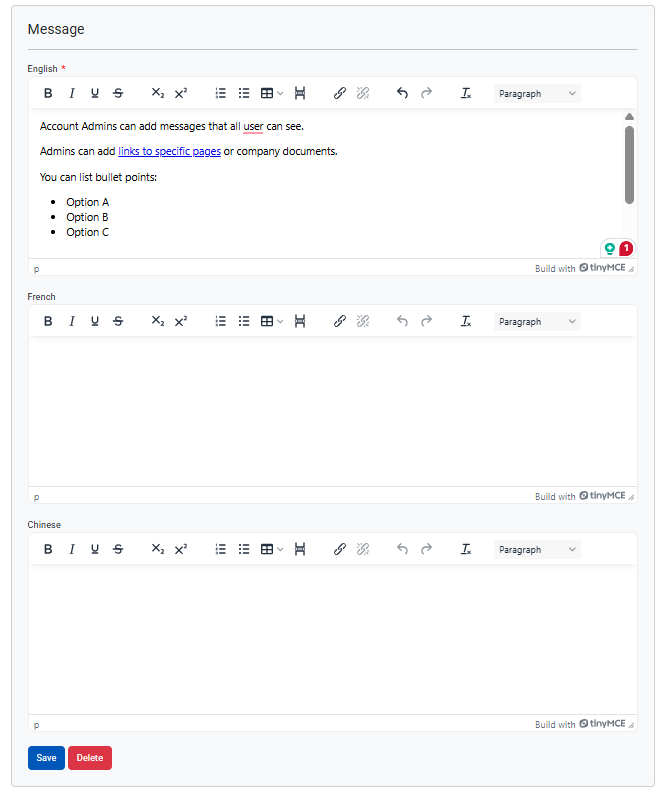
Multi-language Support: You can also add French and Chinese versions to accommodate a multilingual workforce.
Below is the mandatory English rich text editor workspace:
Step 3: Save or Delete Your Message
When you are ready, click Save to create the message and publish it to the account. If you need to remove the message entirely, click Delete.
The full management dashboard layout with the multilingual options, save, and delete capabilities is displayed below:
What End Users See
The feature is designed to be highly visible so users never miss an important internal update or message.
The Top Menu Alert
When there is an active message in the account, the ‘Message’ option will automatically be displayed in the top menu, flagged by a distinct megaphone icon:
When there is not currently a company message, no megaphone icon will be displayed.
Reading the Message
If the user clicks the top menu option, they will be redirected to the new message page where they can read the announcement in full.
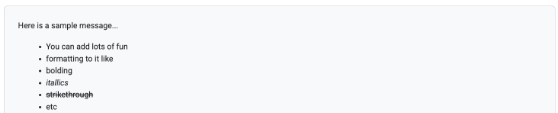
The reader layout supports rich text formatting, meaning users will see any custom elements you added, including bulleted lists, bold, italicized, or struck-through text, tables, and clickable links:
Was this article helpful?
That’s Great!
Thank you for your feedback
Sorry! We couldn't be helpful
Thank you for your feedback
Feedback sent
We appreciate your effort and will try to fix the article