TABLE OF CONTENTS
- General Video Overview
- Create Internal Actions
- View Internal Actions
- Close Internal Actions
- Internal Action Closure History
- Independent Internal Actions
- Internal Actions for documents within Registers
- View Internal Actions from Register
Internal Actions allow you to create, assign, and schedule actions linked to specific items in your account.
Specifically, they can be created for:
- Schedule Audits with Internal Actions
- Internal Actions for documents within Registers
- Independent Internal Actions
General Video Overview
Create Internal Actions
There may be slight variation depending on the type of internal action you are creating (click on the links above to see more information about specific types of internal actions), but in general, all internal actions are created by following the steps below;
Choose a title, facility, responsible party, and due date, and add instructions to your internal action.
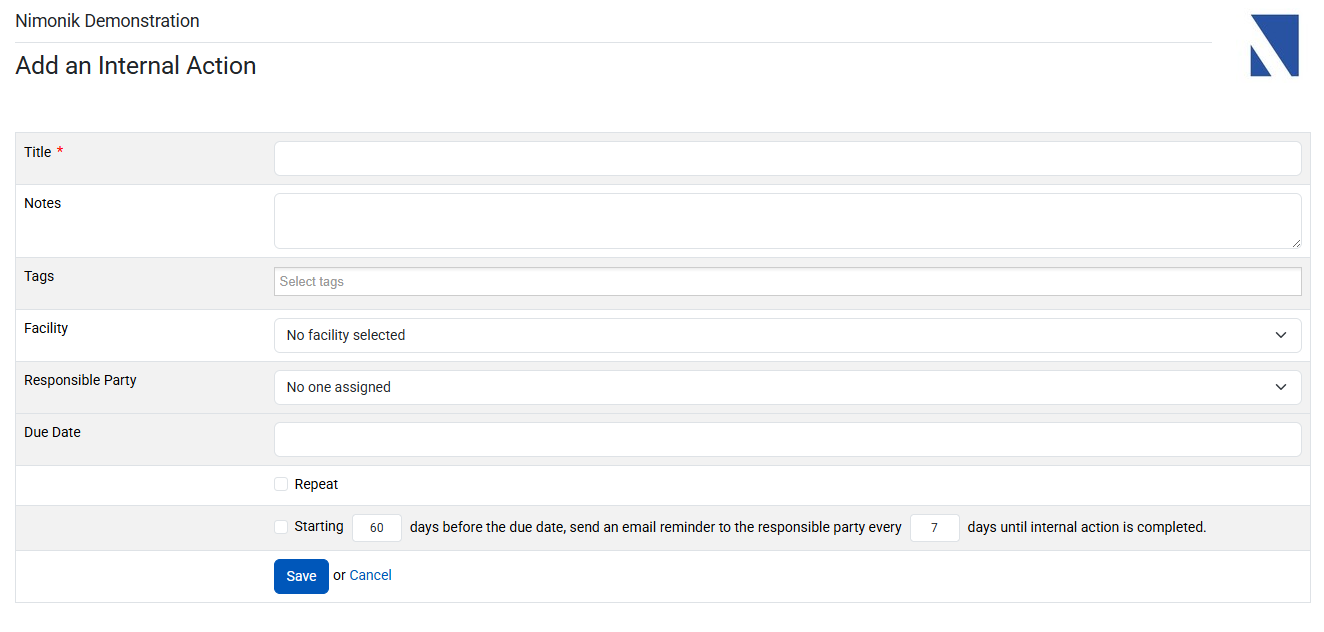
Depending on the type of internal action you are creating, can also add tags and equipment to your internal action at this phase.
If you would like your internal action to repeat:
- Check the Repeat box
- Set the frequency of repetitions
- (Optional) Select a date on which the action should stop repeating

If you would like to send the responsible party an email reminder about the internal action:
- Check the reminder box
- Optionally, update the number of days before the due date to send the email reminder. The default is 60 days.
- Optionally, update the frequency of days that the reminder will be sent until completed. The default is every 7 days.

Once you have entered all of the relevant information, click save to create your internal action(s).
When an Internal Action is first created, the assigned responsible party (Either the individual or all members of the team) will also receive an email notification informing that responsibility party has been assigned an internal action.
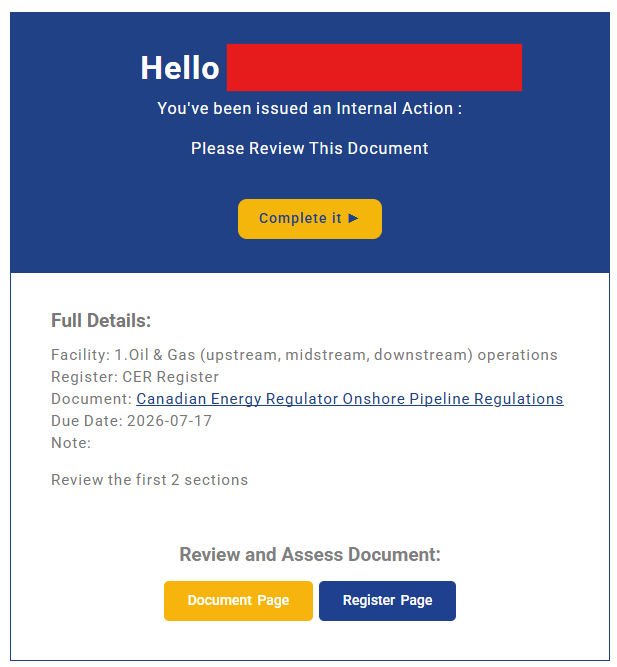
The User can view the Internal Action by clicking "Complete It"

The User can view the Document Activities Page by clicking "Document Page"

The User can view the Register this Internal Action is tied to by clicking "Register Page"
Please note: If the Internal Action repeats, no subsequent emails are sent to the responsible party informing them that they have been assigned to an internal action. In other words, If you assign an Internal Action that repeats once a week, Nimonik does not send the above email per each repeating Internal Actions. The responsible party will only receive an email one time when the action is issued
View Internal Actions
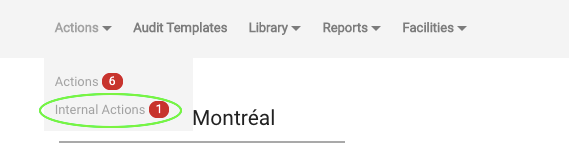
Internal actions can be found on the Internal actions page, which can be reached from the actions menu.
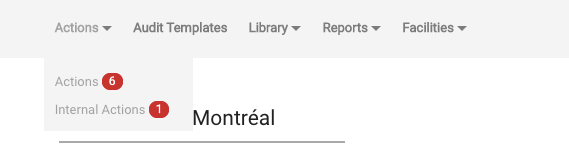
By default, only the actions assigned to you during the next three months will be visible, but you can user the filters at the top of the page to see actions with different due dates and responsible parties. The actions that can be seen are determined by your user role and permission.
- Account administrators can see all of the Internal actions in the account.
- General users can see all of the Internal actions that they have access to.
- Access to an action is determined by access to the account item it was created for. If you have access to a CO, you will also have access to its internal actions
You can also filter by Facility, to view Internal Actions created a specific Facility. You can also fitler by Internal Action type (Internal Actions assigned to documents, clauses, audits, independent actions, or all types).
For all visible internal actions, the title, due date, responsible person, and a truncated version of the note will be displayed. Internal actions created from audit templates, you will also have a button that allows you to start an audit.
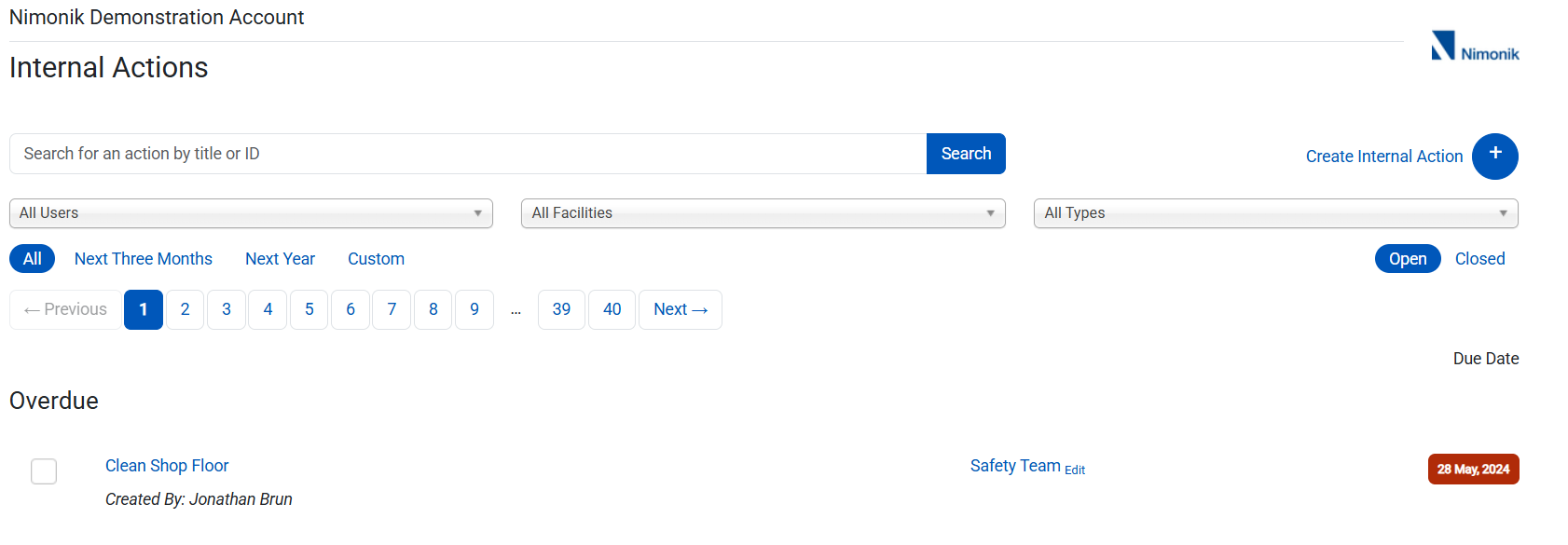
Clicking on the title of an internal action will allow you to edit, delete, and see more information about it. For some internal action types, you will also see a link to the account item that the action was created from.
Users can also use the search bar to search for specific actions by title or by action ID.
Close Internal Actions
To close an internal action, click the checkbox next to its title.
Enter your closure notes in the resulting popup. Account administrators can make these notes mandatory or optional. Click here for more info.
Click Save to close your internal action.
Please note, for internal actions created from audit templates, starting an audit will not close the action. We recommend closing the action and then starting the audit to avoid mistakes.
If you need to reopen a closed internal action, you can do so by clicking on the checkbox. If desired, enter a note in the resulting popup and click ‘Save’ to reopen the internal action.
Internal Action Closure History
A new ‘Closure History’ button has been added to the internal action page.
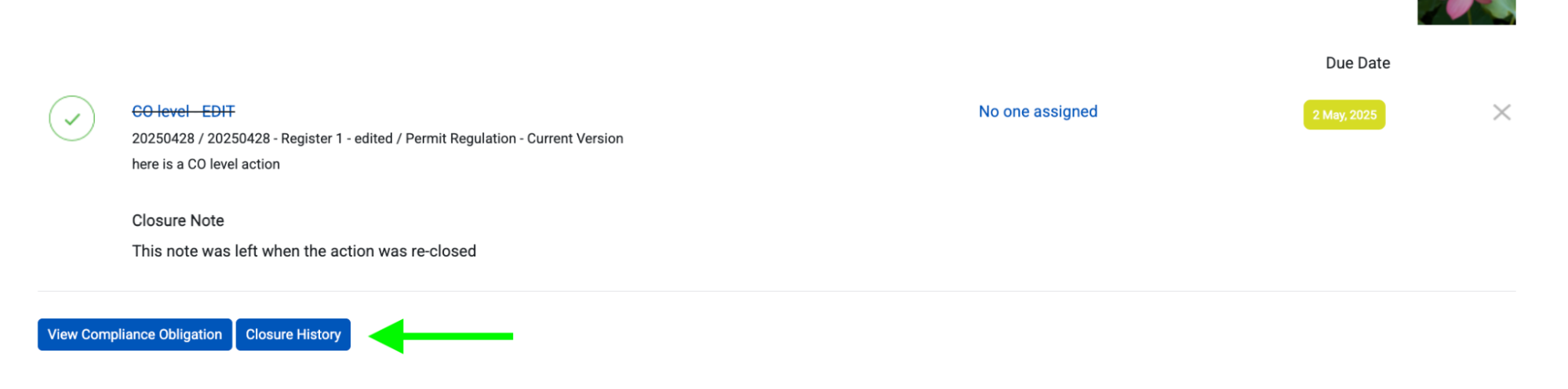
When a user clicks on it, they can now see a history of when their internal actions were opened and closed, as well as the notes left by the person who opened/closed them.
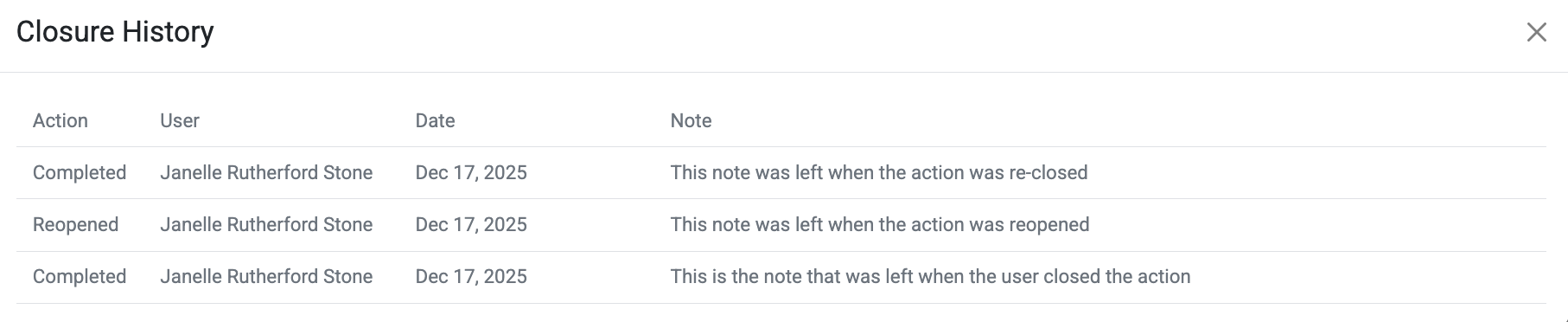
Additionally, the most recent closure note is now being shown in the internal actions report.

Independent Internal Actions
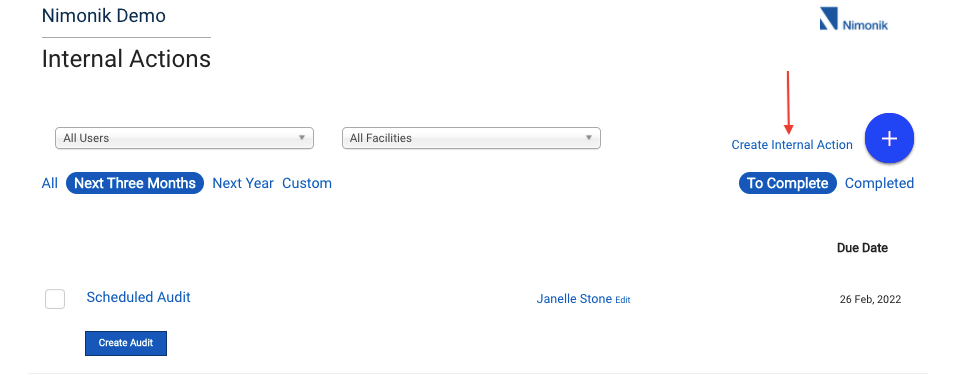
Independent internal actions allow you to assign actions with due dates that are not linked to any specific account item (COs, Audits, Etc.).
To create an independent internal action, go to the Internal Actions Page and click “Create Internal Action”.
Internal Actions for documents within Registers
This section outlines how to create and manage internal actions that are connected to specific documents and clauses in your Registers. These internal actions can be used to close gaps, and to ensure that you are working towards comprehensive compliance across your operations.
Internal actions allow you to create, assign, and schedule actions linked to specific documents in your Registers.
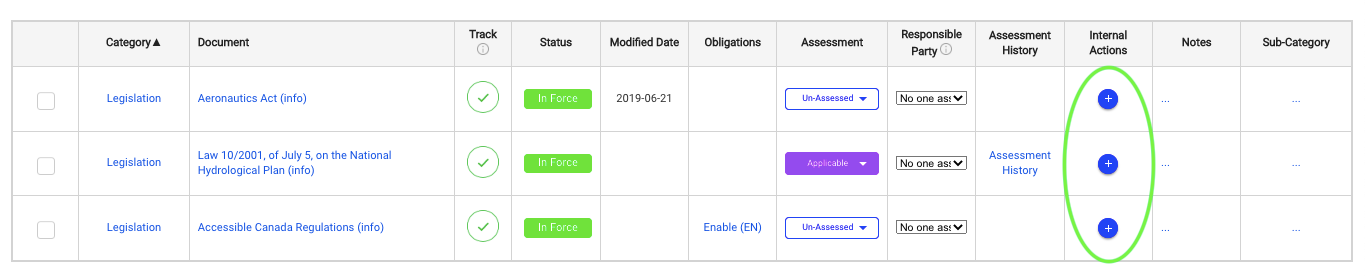
To create an internal action,
Click on the blue icon next to the document or clause that you would like to create an action for
 Reference the above section to learn more about creating Internal Actions.
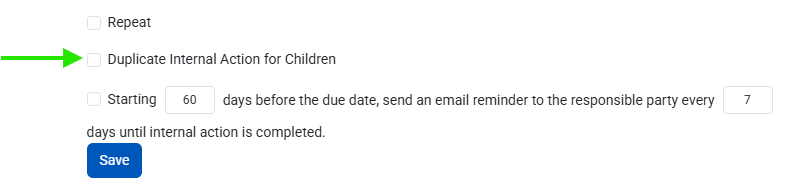
If you are creating an internal action for a parent document, you will also be able to create duplicate actions for all of its children by checking the “Duplicate Internal Action for Children” checkbox.
Once you have entered all of the relevant information, click save to create your internal action. A red notification icon will appear next to the document indicating how many outstanding internal actions are associated with it.

View Internal Actions from Register
Internal actions can be found on the Internal actions page, which can be reached from the actions menu,
or by clicking on the red notification icon in the Internal Actions column of one of the documents in your Registers.
What you see on this page will be determined by your user type and permissions in the account
- Account administrators will see all of the internal actions in the account, their responsible party, and due date.
- General users will see all of the internal actions assigned to them.
Was this article helpful?
That’s Great!
Thank you for your feedback
Sorry! We couldn't be helpful
Thank you for your feedback
Feedback sent
We appreciate your effort and will try to fix the article