TABLE OF CONTENTS
- How to create a Standards Watchlist on the Nimonik Platform
- Who Can Create Registers (Watchlists)?
- How Many Registers (Watchlists) Can I Create?
- I Created A New Register (Watchlist), Can I Share It With Other Users?
- How Do I Receive Updates When Standards Are Changed?
- Do New Versions of Standards Get Automatically Added to My Register (Watchlist)?
How to create a Standards Watchlist on the Nimonik Platform
Users can now create a personal register (Also known as a "watchlist", "favorites list", or favourites list") to track the standards most relevant to their operations. This register provides quick access to frequently used standards, including those subscribed to by your organization and those that have not been purchased.
Follow these steps to learn how:
Step 1: Sign In To Your Nimonik Account
- Log in to your Nimonik account using this link & bookmark this page for future use (nimonikapp.com).
- For Organizations with SSO (Single Sign-on) enabled, users will not log in using a business email and password. Instead, users with proper credentials should be able to access the account via an internal company portal. For more information, please discuss with your account administrator.
Step 2: Click the "Registers" button
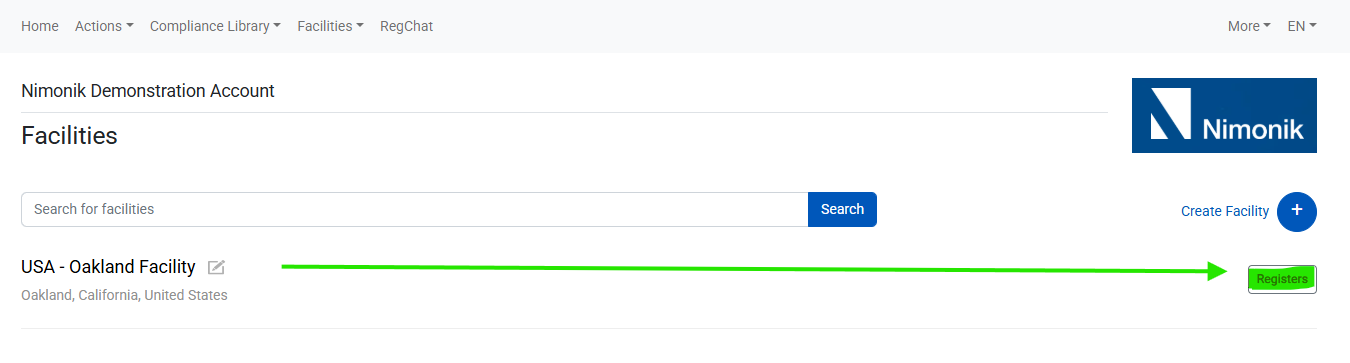
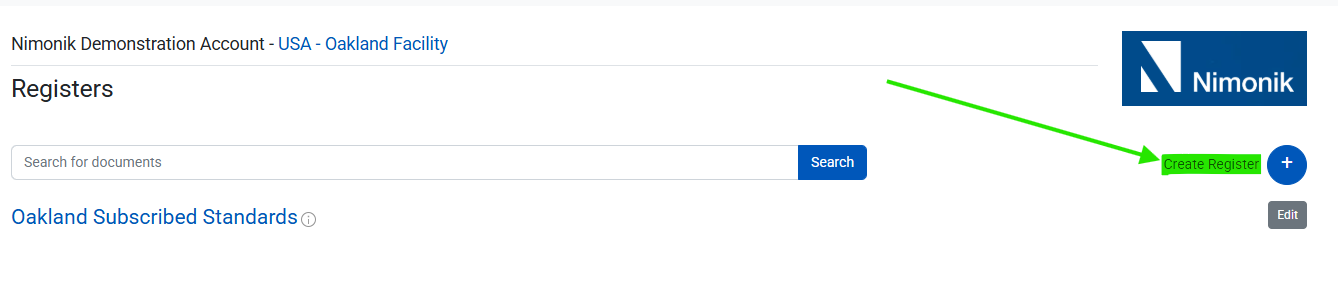
Step 3: Click "Create Register"
- On the subsequent page, you should see the main list of subscribed Standards for that Facility. To create a new register, click the "Create Register" button to the right
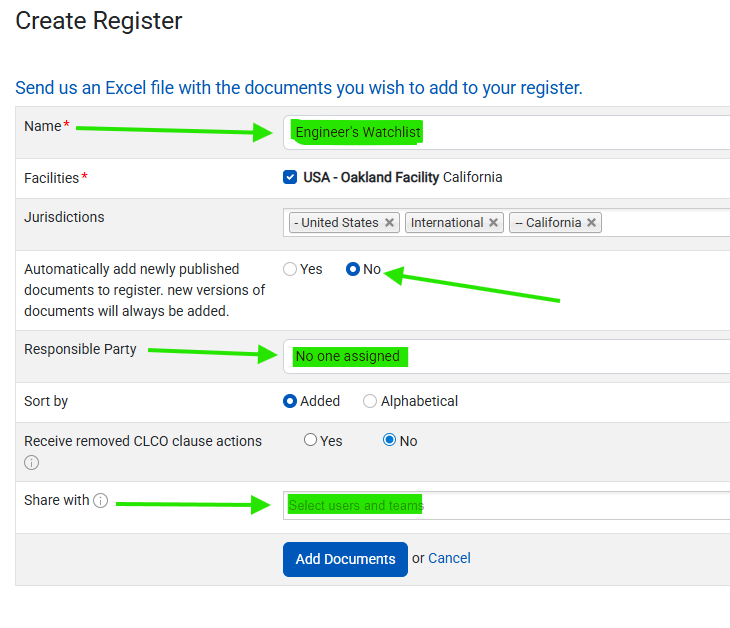
Step 4: Name the Register and Set Parameters
- Name the Register: On the subsequent page, you must give the register a name
- Auto-Add New Documents (Default: No): Decide whether newly published documents should be automatically added to this register.
Note: Even if you select "No," new versions of documents already in the register will always update automatically, ensuring you always have the latest content.
Responsible Party (Optional): Select a default Responsible Party (an individual or team) for this register. This party will be automatically assigned to all existing and newly added documents within the register.
Share With (Optional): Click this box to grant access to additional users or teams who should be able to view and manage this register.
- Click "Add Documents" when finished. If you make a mistake, you have the ability to edit these parameters later.
Step 5: Add Documents
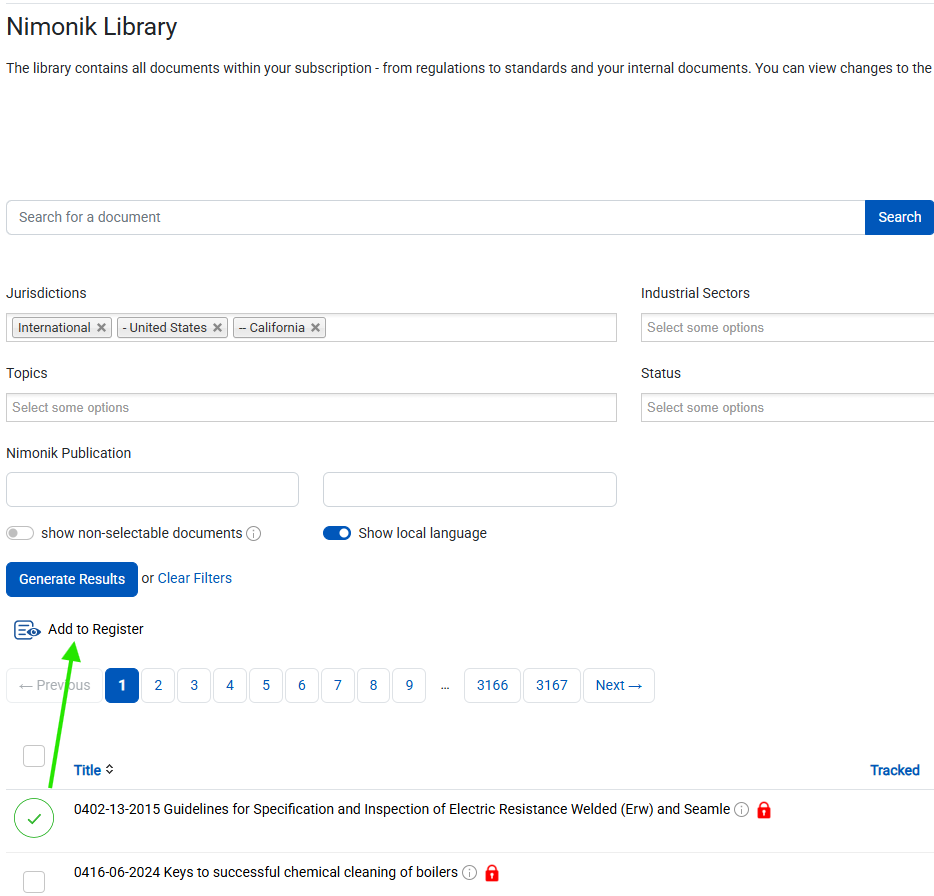
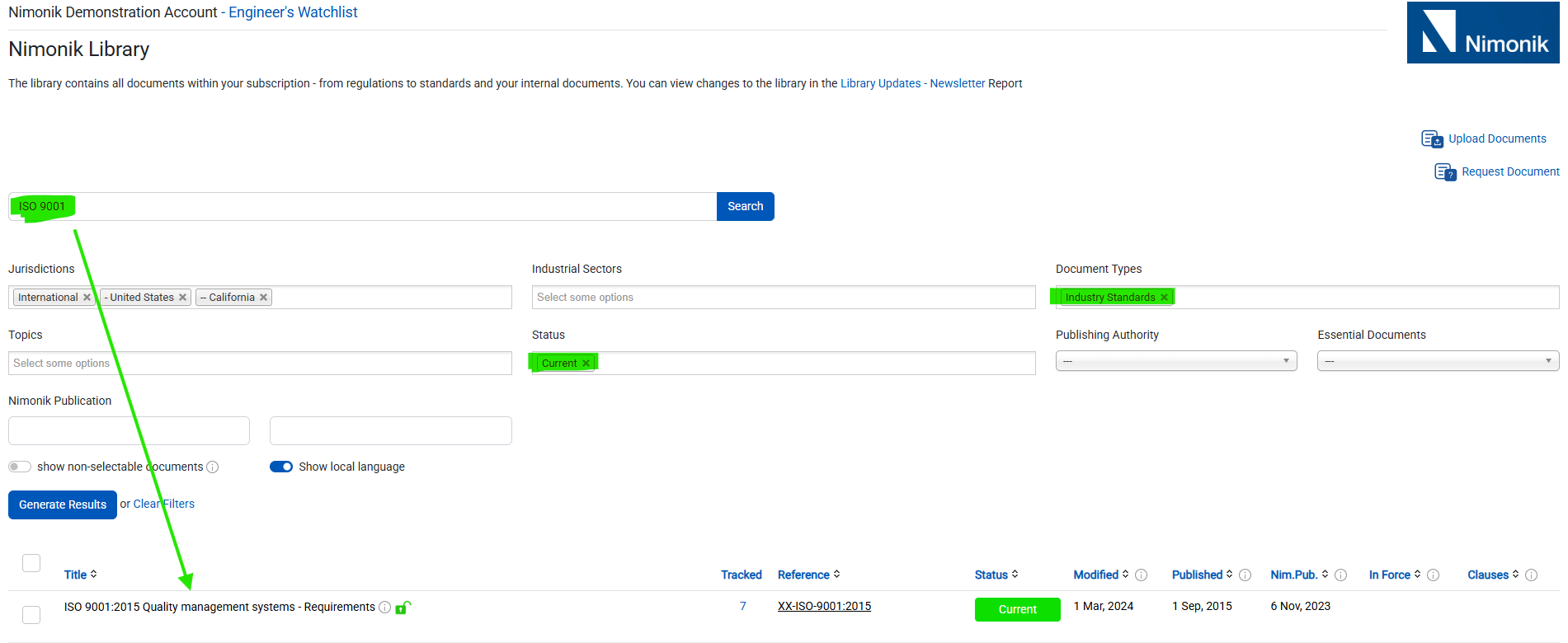
- On the subsequent Nimonik Library Page, you can select which Standards you would like to add to your new register
- You can use the search bar and the filters to find the exact Standards you are looking for
- Once you select a Standard, the "Add to Register" button will appear. Clicking this button adds the selected Standard to your new register
- You can select multiple Standards at once; however, be aware that moving to the next page or performing a new search will clear your current selection.
Step 6: View Documents in register
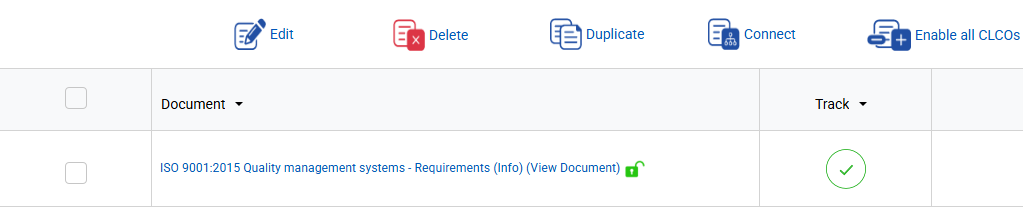
- Clicking "Add to Register" takes you to the Register (Watchlist) page. If your added documents do not appear immediately, please refresh the page.
- To learn more about accessing, viewing & downloading Standards, view this support page.

Step 7: Add More Documents to Register
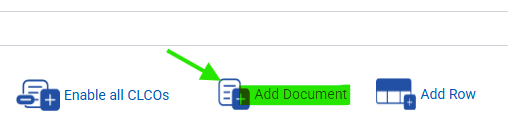
- You can add additional documents at any time by clicking the "Add Document" button and repeating Step 5
Who Can Create Registers (Watchlists)?
Account Administrators can create new registers. Click here to see who your Account Administrators are. Those with General User permissions can also create new registers. Restricted Users (the default level of permission), Read-Only Administrators, and Read-Only Users cannot create new registers.
How Many Registers (Watchlists) Can I Create?
There is no restriction on how many registers can be created for your organization.
I Created A New Register (Watchlist), Can I Share It With Other Users?
Yes, Account Administrators and General Users can share the register with additional users or teams.
Find the register and click the "Edit" icon located next to its name.

Use the Share With field to search for and add the necessary users or teams. (Remember, users must already have a Nimonik account.) Click Save to confirm access changes.

Click here to learn more about creating and managing Teams.
How Do I Receive Updates When Standards Are Changed?
There are two ways to receive updates when a Standard in a Watchlist is changed
Watch the Register:
- Users can choose to "Watch" any of the registers that they have access to by clicking the bell icon at the top of the page.
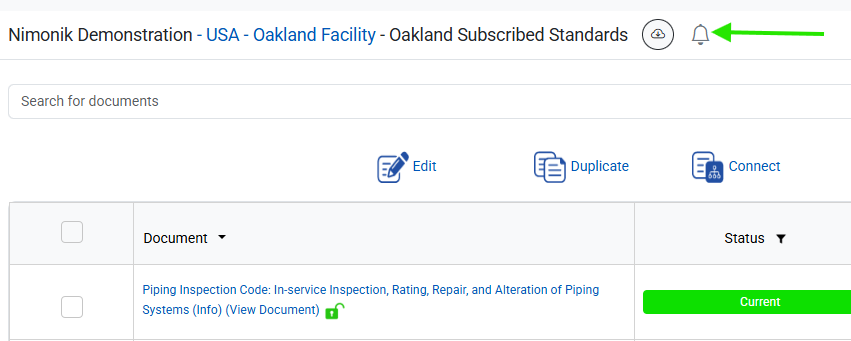
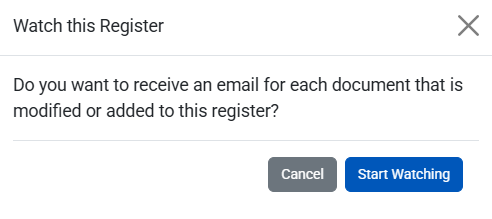
- A grey bell means that the user is currently watching the register, and white bell means they are not watching the register

- When a user is watching a register, they will receive an email notification when:
- A new document is added to the register (either automatically added by Nimonik, or added from the library by a user)
- The status of a document in the register is changed
- These notifications will be sent regardless of whether or not the user is assigned as the Responsible Party
External Actions:
- Whenever a Standard in your register is updated, the Responsible Party will be informed within Nimonik’s software via External Actions and outside the software via a weekly email sent every Monday. The email subject is “This Week’s Actions”. The Responsible Party has the option to receive or not receive this weekly email on their “My Profile” page.
- New versions of tracked standards are automatically added to the register.
If the standard is unlocked for this specific facility (yellow unlock icon), or your entire organization (green unlock icon), then the new version will be automatically unlocked and accessible from your watchlist. The Responsible Party will also be notified about this new version via External Actions.
- The Responsible Party can view and read the list of External Actions here or by clicking the Actions menu, then “External Actions”.
- From the Register page, you can also see which documents have been recently updated and have outstanding External Actions. These documents will have a red number in the “Assessment History” column, like this:
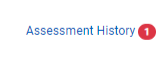
- You can click on the red number to read this External Action and learn more about the update.
Do New Versions of Standards Get Automatically Added to My Register (Watchlist)?
- Yes, new versions of Standards that are tracked in your Register will be automatically added to your account and to your Registers. New versions of Standards will appear as separate items in your Register. The Responsible Party will also be informed about these new versions via External Actions.
Was this article helpful?
That’s Great!
Thank you for your feedback
Sorry! We couldn't be helpful
Thank you for your feedback
Feedback sent
We appreciate your effort and will try to fix the article