TABLE OF CONTENTS
Welcome to Nimonik! We're thrilled to have you on board.
Regulatory compliance doesn't have to be a headache. This guide is designed to get your Newsletter & Library Subscription up and running in minutes. We’ve split this into two quick sections: one for Account Administrators (the platform architects) and one for everyday End Users (the compliance champions).
If you are an End User, you can skip straight to the Quick Start Guide for End Users below.
Quick Start Guide for Account Administrators
The following section is intended for Account Administrators. If you are an End User, please refer to the "Quick Start Guide for End Users" section here.
Account Creation & Set up
Once your agreement is finalized, the Nimonik team handles the heavy lifting. We will build your account and prepulate it with all your purchased compliance content.
Using Single Sign-On (SSO)? If your organization uses SSO, our technical team will coordinate directly with your IT department to get it configured. See the SSO section below for what changes.
Access Your Account and Invite Users to Join the Account
Getting inside the platform and setting up your team involves just a few key steps:
- Accept Invitation & Join Account: Once the account has been created, Nimonik's team will first invite the main Point of Contact (POC) to join the account. Other users can later be added.
- The email invitation will come from this email: “Nimonik” <subscription@nimonik.com>. Don't see it? Check your spam folder just in case!
Your Role: The main Point of Contact (POC) for an account will be set up as an Account Administrator. This permission grants you full access to the account. It also allows you to add users, remove users, manage user permissions, edit account settings, and more.
Please read this support page to learn more about user management.
It is possible to set multiple users as Account Administrators.
To view the list of Account Administrators, check out this page.
- Invite Users: Account Administrators can invite users to join the account.
Please follow this guide to learn how to invite new users to the account.
You can invite an unlimited number of users to your account.
Log In Page: Moving forward, to access the library or to generate a newsletter report on demand, go to the Nimonik app at https://nimonikapp.com/users/sign_in. We highly suggest bookmarking this page for future use. If you are a Canadian company, your login may be on https://nimonikapp.ca/users/sign_in.
Pro-Tip (Set a Default Home Page): By default, users land on the Facility page. To give your team immediate access to their content, you can change their default landing page to the Library page via your Account Settings.
Single Sign-On (SSO) Access: What Changes
If your account has been configured with SSO, the process differs from the standard login:
Access: You will sign in via your organization's internal application or a specific direct link provided by your technical team. You will not use an email address and password.
User Management: Adding or removing users from Nimonik will be managed entirely by your organization's technical team. You will not use Nimonik's internal invite feature, and Nimonik's team cannot add any users to your account.
Support: For questions regarding login access or adding/removing users, please contact your organization's internal IT or technical team.
Activate Receiving Monthly Newsletter
Upon signing-in for the first time you will want to activate receiving the monthly newsletter, you can do so by following the below steps:
Step 1: Click the More drop-down menu (top-right corner).
Step 2: Select Settings, then click the My Profile drop-down on the right and select My Profile.
Step 3: Scroll down and check the box: "Receive Monthly Library Updates - Newsletter by email".
Step 4: Use the drop-down just above that checkbox labelled "Receive communications in" to select your preferred language when receiving the newsletter. We have English, French, and Chinese available.
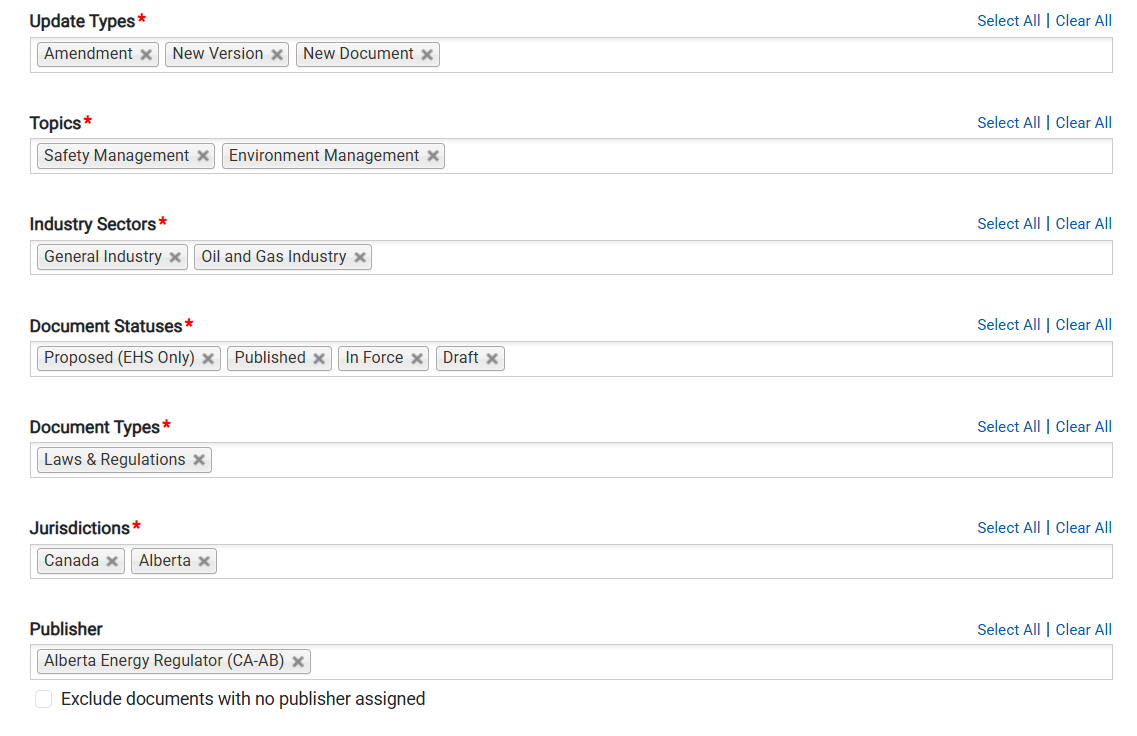
Step 5: Use the available selections below the checkbox from Step #4 to tailor your newsletter. You can tailor the following: Update Types, Topics, Industry Sectors, Document Statuses, Document Types, and Jurisdictions.
? Note: Every new user must complete these steps individually to start receiving their monthly customized email.
Support, Training, & Additional Features
If you have questions or need additional training, here are your resources:
Standards FAQs: For a comprehensive list of frequently asked questions related to your purchased Newsletter service, check out this support page.
Admin or End User Training: Getting started is easy, but we're always here to help! To arrange an Admin or End User training session, please contact your Nimonik Account Manager. They will connect you with a member of Nimonik's Customer Success team, who can provide training, discuss questions, or review additional features.
Quick Start Guide for End Users
The following section is intended for everyday End Users of the Nimonik Platform. If you are an Account Administrator, please refer to the section above.
Logging into Nimonik with Standard Username & Password
- Step #1: Head to Nimonik app (https://nimonikapp.com/login) or if you're a Canadian company you may need to head to (https://nimonikapp.ca/login).
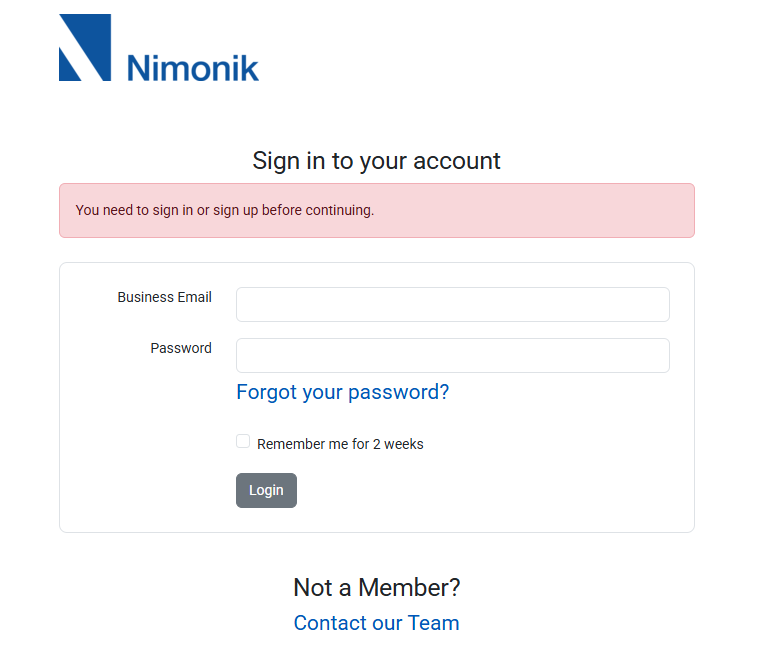
- Step #2: Enter your business email and password.
- Step #3: Click the "Login" button.
Forgot your password? Don't panic. Use our quick guide to reset your password.
Single Sign-On (SSO) Access: What Changes
If your account has been configured with SSO, the process differs from the standard login:
Access: You will sign in via your organization's internal application or a specific direct link provided by your technical team. You will not use an email address and password.
User Management: Adding or removing users from Nimonik will be managed entirely by your organization's technical team. You will not use Nimonik's internal invite feature, and Nimonik's team cannot add any users to your account.
Support: For questions regarding login access or adding/removing users, please contact your organization's internal IT or technical team.
Note: You can find additional information for logging in via SSO here.
Activate Receiving Monthly Newsletter
Tailor the system so the right regulatory updates hit your inbox every month:
Step 1: Once logged into Nimonik's platform. Click the More drop-down menu in the upper-right corner.
Step 2: Select Settings > click My Profile (on the right-hand side) > select My Profile.
Step 3: Scroll down and check the box: "Receive Monthly Library Updates - Newsletter by email".
Step 4: Set your preferred language (English, French, or Chinese) using the Receive communications in drop-down.
Step 5: Use the checklist options to customize your feed by Update Types, Topics, Industry Sectors, Document Status, Document Types Jurisdictions, and even Publisher so you only see what matters to your role.
Generating a Newsletter Within Nimonik
Need to pull an immediate compliance report without waiting for the monthly email? You can generate one instantly:
Step 1: From the top menu bar, click Library and select Library Updates - Newsletter.
Step 2: Use the form fields to filter the exact data you need.
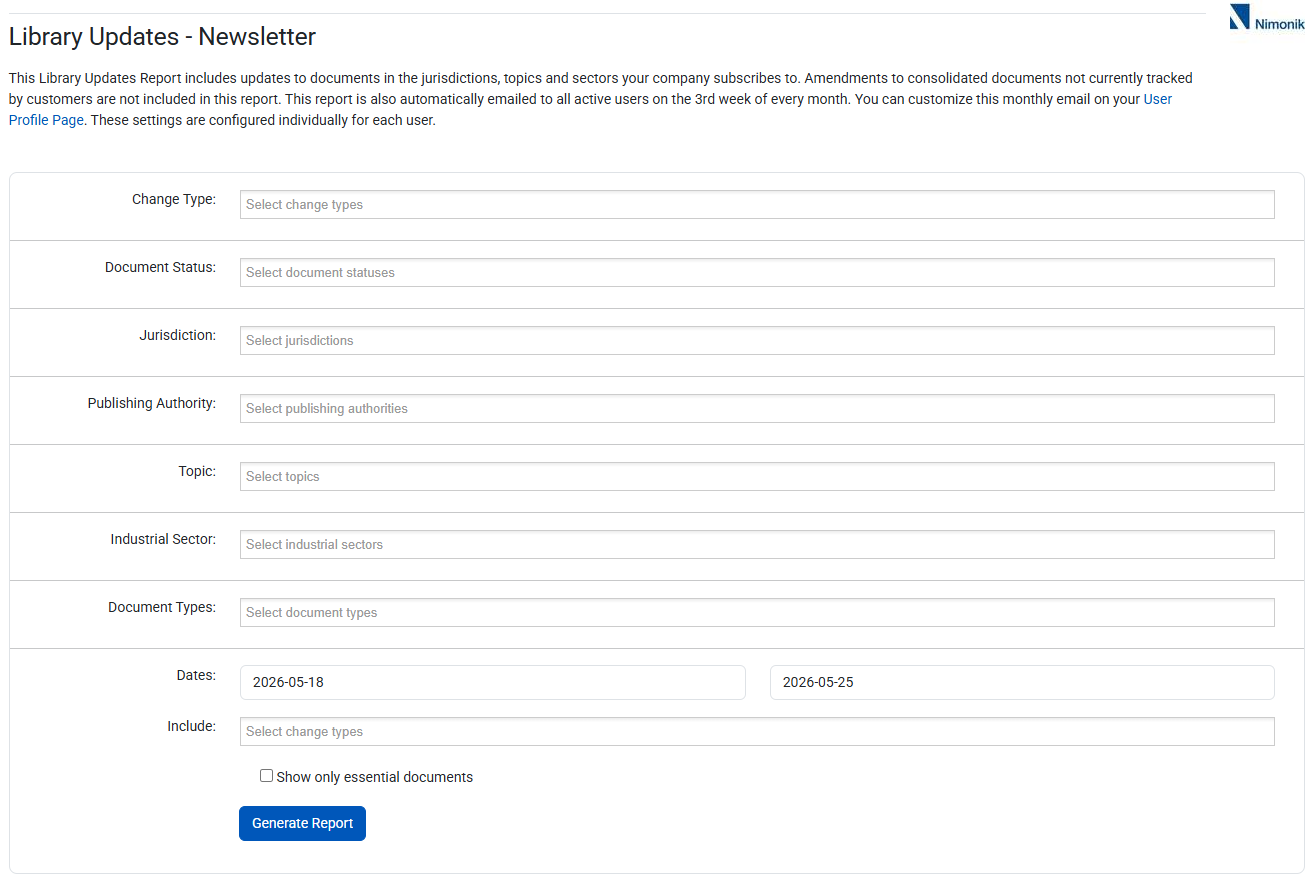
- Step 3: Adjust the dates at the bottom of the form to capture your specific time period.
- Step 4 (Optional): Check the "Essential Documents" box if you only want to see critical, industry-defining regulations (e.g., the Canadian Energy Regulator Onshore Pipeline Regulations for cross-border energy firms).
- Step 5: Click Generate Report. Nimonik will compile the data and email the report directly to you as soon as it's ready!
Support, Training, & Additional Features
If you have questions or need additional training, here are your resources:
Standards FAQs: For a comprehensive list of frequently asked questions related to your purchased Newsletter service, check out this support page.
Admin or End User Training: Getting started is easy, but we're always here to help! To arrange an Admin or End User training session, please contact your Nimonik Account Manager. They will connect you with a member of Nimonik's Customer Success team, who can provide training, discuss questions, or review additional features.
- Deep Dive Resource: Want a complete breakdown of newsletter features, layouts, and advanced customization? Explore our Comprehensive Newsletter Guide.
Was this article helpful?
That’s Great!
Thank you for your feedback
Sorry! We couldn't be helpful
Thank you for your feedback
Feedback sent
We appreciate your effort and will try to fix the article